


.svg)
.svg)
How I learned to stop note-taking and let AI work for me

I started a new job this week. By Friday, I’d already lost track of what happened on Monday.
The issue is embarrassingly simple: I suck at taking notes, and I forget things, both of which most people probably relate to.
This problem is particularly painful right now. In my first week, I’m context-switching between hiring decisions, technical reviews, compliance audits, and strategic planning. Important details are buried in an email thread or on a slide we walked through together. And my notes barely exist.
I’ve tried to solve this problem before, of course. I’ve tried:
- Pen and paper — ends up being a context switch, and it’s a medium I don’t feel comfortable in anymore.
- iPad + Apple Pencil — not gonna lie, I actually enjoy this. But not for work; it has the same issues as pen-and-paper.
- IDE notes, Evernote, and 10 other note-taking apps — I’ve tried them all. Every single one ends up doing something that annoys me or that I can’t easily repeat, manage, or keep track of.
None of it has worked. So this week I decided I’m going to try something different: AI.
Making a home in the terminal
I started by asking myself: Where am I most comfortable at work?
The answer: The terminal.
That’s my home. I’m an engineer at heart. I’ve spent decades in terminals, IDEs, and command lines. I always have one open - looking at something else, testing code somewhere. That’s where I think clearly. That’s where I’m fastest.
So when I needed a system to keep me organized in my new role, I didn’t reach for another app with a pretty UI. I built my command center where I already live.
(Note: There are probably other ways (and likely easier ones) to organize your work using web-based tools like ChatGPT, Claude, or Gemini, but if you live in the terminal, this is the way I’d recommend).
The high-level design: Claude Code as command center
Instead of treating AI as a tool I query occasionally, I decided to set it up as a persistent command center.
My goal was to have AI:
- Maintain my daily notes in Obsidian with a structured format
- Sync with my calendar to know what meetings I have
- Read my email to surface action items I might miss
- Connect to Linear to track engineering work and CapEx allocation
- Carry context forward so I can say “what did we discuss about the pen test?” and get a real answer
For this, I used Claude Code. It’s the AI coding tool I already use, and it lives neatly within the terminal, meaning I didn’t have to invest in other add-on tools. If you haven’t tried Claude Code, it takes 2 minutes to set up, and I can’t recommend it enough.
The architecture
For the techies, here’s what the system looks like:
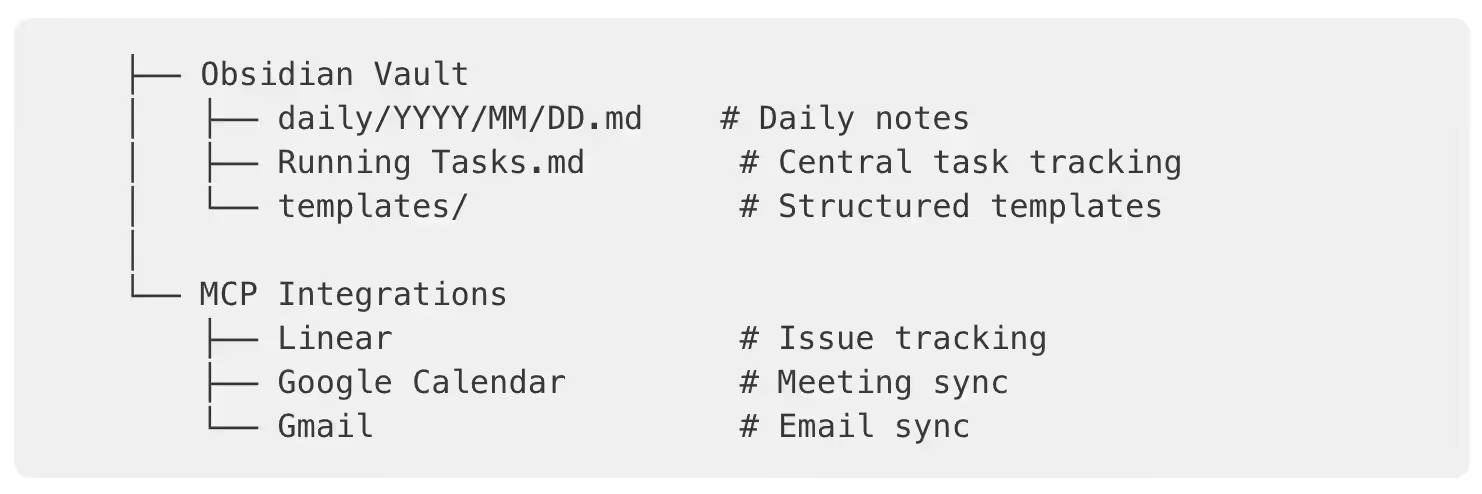
MCP (Model Context Protocol) is the secret sauce. MCP lets Claude Code connect directly to external services - not through copy-paste or screenshots, but through native API integrations. It’s not new, but if you’re not using it already, you should be.
Setting up the MCPs
Linear
Linear has official MCP support. One command:

Restart Claude Code, authenticate in your browser, done. Now I can say “show me open issues in Employee Enablement” or “create a ticket for the QA automation work” directly from the terminal.
Google Calendar & Gmail
Both use the same OAuth credential: one setup, two MCPs.
1. Create a Web application OAuth credential in Google Cloud Console (APIs & Services → Credentials → Create OAuth Client ID → Web application)
2. Add both authorized redirect URIs:
- http://localhost:3000/callback (Gmail)
- http://localhost:3500/oauth2callback (Calendar)
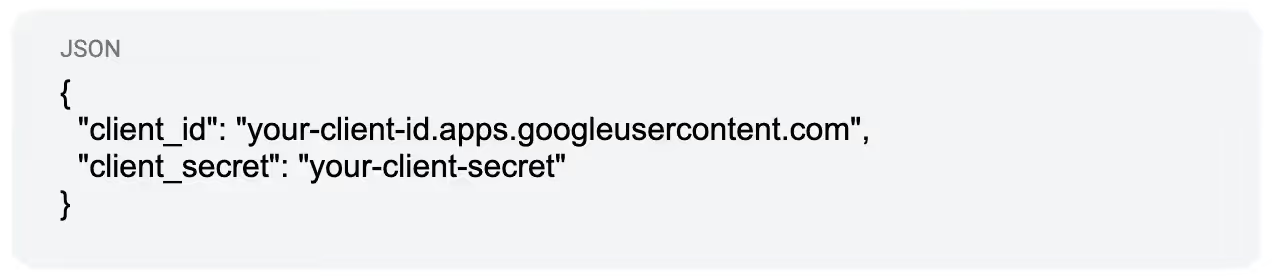
3. Create a credentials file at ~/.gmail-mcp/gcp-oauth.keys.json:
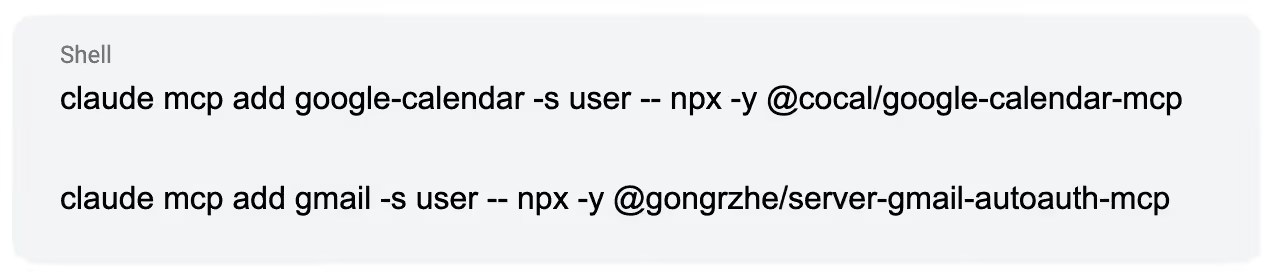
4. Add the MCPs:
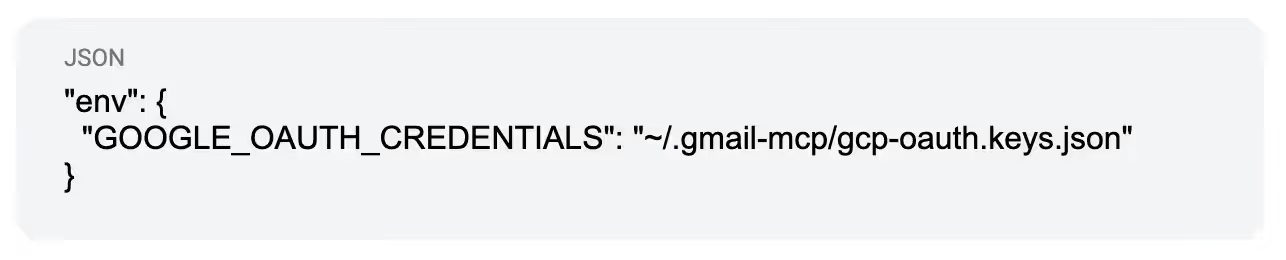
5. Point Calendar to the same credentials by adding to your ~/.claude.json:
6. Restart Claude Code and authenticate each MCP when prompted.
The daily workflow
I created a /new-day command in Claude that I run every morning. It:
- Gets today’s date and creates the daily note using a template
- Checks yesterday’s note for incomplete tasks and carries them forward
- Reads Running Tasks.md and summarizes what’s due, waiting, or upcoming
- Checks Linear for assigned issues and tickets needing CapEx review
- Checks Calendar for today’s meetings and prep needed
- Presents a morning briefing with priorities, follow-ups, and meetings
- Asks about top 3 priorities for today and updates the daily note
Throughout the day, I just talk to Claude:
- “Stand-up meeting done, follow up on release notes on Friday.”
- “Budget reviewed, updated deck and spreadsheets.”
- “Add observability review to this week’s tasks.”
Claude updates everything - the daily note, running tasks, completed items. It’s like having a chief of staff who never forgets.
What actually changed
Before: I’d open my notes app with good intentions, write a few bullet points, then forget about it. By the end of the week, I’d be reconstructing what happened from memory and calendar forensics.
After: I speak facts into a terminal throughout the day. Claude maintains the system of record. When I ask, “What’s still pending from this week?” I get an actual answer.
The key change: I no longer update my notes. I just tell Claude what happened, and it reconciles everything.
I’m also seeing immediate applications beyond task management. This week, I was aligning our product personas with domain teams, and there was lots of back-and-forth with ChatGPT to get the framing right. Once I had a version I liked, I just had Claude read the Google Doc, update my local notes, and summarize the work. Now, when someone asks for a status update, I don’t have to dig through docs. It’s already captured.
The mindset shift I had to make
This setup works because I stopped asking, “How can AI help me?” and start asking, “Where are my own systems failing me, and why?”
Note-takers didn’t work for me because they required additional discipline on top of my other work. The answer isn’t magically building that discipline - it’s building a personal command center in the place where I’m already comfortable and doing my best work.
With this setup, I’m able to flex what I’m good at - managing the result. Like any good manager, I set the standards, review the output, and make the calls. The AI handles execution. I handle judgment.
It’s not outsourcing my job or anyone else’s. It’s removing the friction that prevented me from doing the work myself.
Try It yourself
You don’t need my exact setup. Start with the question: What falls through the cracks for you, and why?
- If it’s tasks: Set up a Running Tasks document and tell Claude to maintain it
- If it’s meetings: Connect Calendar, MCP, and let it brief you each morning
- If it’s emails: Connect Gmail and have it surface action items weekly
- If it’s project tracking: Connect Linear/Jira/whatever you use
The tools are modular. Pick the friction points that hurt most. Find the environment where you already think clearly, and build there.
The best AI setup is the one that actually sticks. For me, that meant building it where I already live.
I’m a week into this. Ask me again in six months whether it stuck. If you’ve tried something similar, whether it worked or you hit friction, I’d like to hear what you’ve done.
Tech stack
- Claude Code (Anthropic’s CLI tool)
- Obsidian (local markdown notes)
- MCP servers: Linear, @cocal/google-calendar-mcp, @gongrzhe/server-gmail-autoauth-mcp
- Google Cloud Console (OAuth credentials)
Time to set up: ~1 hour
Time saved per week: Hard to quantify, but “not forgetting important things” is priceless.
This post was originally published on Chad’s Substack.


.svg)


.webp)